A Convincing Phishing Email: What We Learned From the Report
Phishing emails do not always look suspicious. They may have no spelling mistakes, unrealistic promises or obviously fake addresses. Sometimes, they look like routine system messages, with one small detail that makes the recipient pause.
That is what happened to an employee at an organization we manage.
She received an email with no subject line, marked as high importance. The sender's display name was SystemClientHelpdesk, which sounded like a support system. The message said that, due to a network issue, she needed to verify her account before it expired that evening. Below the text was a link styled as an account verification button, alongside the organization's name.

- Empty subject line
- High-importance flag
- System-sounding sender name
- Same-day deadline with garbled date
- Link starts with Google, leads elsewhere
- Blurred old pasted thread
The following is the mail text exactly as sent, in the original English.
Dear [first name],
Due to system network outage experience, your organization [organization] needs your review on your account
Review and verify accordingly before it expires November 16, 202606:33 PM
Review and stay connected
[organization] Organization
The message was short, urgent and apparently relevant. But something did not feel right.
An old, genuine email thread from a professional office had been pasted below the request. It contained names, signatures and phone numbers. The employee phoned the person whose name appeared in the thread and asked whether the message was connected to him. He told her it was phishing and advised her not to click.
The employee did not open the link or reply to the email. She opened a ticket in SrvIT's support system and asked whether she could delete the message.
Deleting it immediately would have dealt with one mailbox. Before doing that, we needed to understand where the email came from, where the link led and whether anyone else had received it.
The investigation showed that this was part of a wider attack. The report allowed us to identify its characteristics, find the same attack targeting exactly one more person at one other organization we manage, and add blocks across all the Microsoft 365 environments we manage. We then verified that the blocks appeared in each environment's block list.
Why did this phishing email look convincing?
The message combined several details intended to make the recipient act quickly, before she had time to examine the request.
The sender's name sounded like a support system. The email included the organization's name, referred to a general network problem and gave a deadline. The message was simple: deal with this now or your account may stop working.
The genuine email thread pasted at the bottom made the message appear more credible. Names, signatures and phone numbers can make an email look like part of an existing conversation. In reality, an old thread does not prove who sent the new message. In this case, it was being used as scenery.
The link was also designed to look harmless at first glance. It initially passed through an address belonging to a familiar service, then redirected to another website. Someone checking the link quickly might notice the familiar name and assume the address is safe.
The final destination was a fake sign-in page hosted on a compromised, unrelated website. The employee's email address was encoded inside the link. This allowed the fake page to display personalized information and create the impression that it was a genuine sign-in screen.
This method appears in many forms. In an earlier case we investigated, the email used Spotify as its cover story. The design and explanation change, but the objective remains similar: persuade the recipient to act before checking the request.
How did the phishing email get through Microsoft 365 filtering?
Microsoft 365 filtering systems assess each message using many different signals. They examine the server that sent the email, whether that server is authorized to send on behalf of the domain, the message content and the destinations of any links.
These checks stop many suspicious messages, but no filtering system identifies every impersonation attempt. Attackers try to take advantage of complicated delivery routes, compromised websites and legitimate services used as intermediate steps.
To understand what happened in this case, the SrvIT team examined the email's full headers. These are technical records that recipients do not usually see. They document the servers through which the message passed and the checks performed along the way.
The sender address displayed the domain of a real business that had no connection to the email. The server that sent the message was not authorized to send on behalf of that domain. The SPF check, which determines whether a sending server is permitted to use a particular domain, failed at the point of origin.
The message then passed through another Microsoft 365 environment. This delivery route affected how the message was evaluated, and it was not blocked when it reached the employee's mailbox.
Our investigation also found that the domain shown as the sender had no DMARC policy. DMARC allows a domain owner to tell other mail systems how to handle messages that claim to come from the domain but fail authentication checks. For example, a policy can instruct the receiving system to reject a message that does not pass those checks.
Without such a policy, the receiving system has no clear instruction from the domain owner about how to handle the impersonation attempt.
This case does not mean email filtering is unnecessary. It shows why filtering cannot be the only line of defense. Better protection combines technical filtering, properly configured email authentication, monitoring and a clear process employees can use to report suspicious messages.
What did the SrvIT team do after receiving the report?
The investigation began on the employee's computer. We checked the browser history and found no visit to the fake website. She had stopped before clicking and reported the message in time.
We then searched the email logs across the environments we manage. We found the same attack targeting exactly one more person at one other organization we manage. That message came from a slightly different sender address under the same domain.
The use of different addresses showed why blocking a single sender address was insufficient. An attacker can quickly change the address while continuing to use the same infrastructure.
Based on the findings, the SrvIT team blocked:
- The sender address identified during the investigation.
- The domain used to send the messages.
- The fake website linked from the email.
The blocks were added to the shared list we maintain for all the Microsoft 365 environments we manage. We then verified that the blocks appeared in each environment's block list.
We also examined activity in the mailbox of the other person who received the message. We found no indication that the account had been compromised.
The report allowed us to search for the same pattern elsewhere instead of stopping after deleting one email from one mailbox. These blocks will not prevent every future phishing message, but they reduce the risk from the infrastructure identified during the investigation.
Further readingOutlook Not Working? What Happened and What to CheckThe worldwide Microsoft outage began Thursday, November 12. Most Outlook service is back, but important messages, attachments and calendar changes still need checking.Which signs should make you pause?
None of the following signs proves on its own that an email is phishing. When several appear together, it is worth stopping before taking action.
The email has no subject line
An important system message will usually have a subject that explains what it concerns. An email with no subject, especially one demanding immediate action, deserves closer examination.
The message pressures you to act immediately
Wording such as "your account will expire this evening" is intended to shorten the time available to think. The pressure makes the recipient less likely to pause, ask someone else or send the message to the IT team.
The explanation is vague
"A network issue" may sound plausible, but it does not explain which system is affected, who is handling the problem or why the employee must sign in or provide a password.
The sender's name sounds official
Display names such as "Support Desk", "Customer System" or "Account Manager" are easy to fake. The name shown at the top of an email does not prove who actually sent it.
The link starts with a familiar address and redirects elsewhere
A link containing the name of a familiar service is not necessarily safe. Sometimes the recognizable address is simply an intermediate stop on the way to a fake website.
You do not need to open a link to investigate it. An IT team can examine it in an appropriate environment without exposing the employee's computer to the suspicious site.
An old, genuine email thread is attached
A previous conversation may be genuine and still appear inside a phishing email. Attackers sometimes use information stolen earlier to make a message look like part of a familiar exchange.
What should you do with a phishing or suspicious email?
Do not click the link and do not reply.
If the email contains a request that appears to come from a familiar person or organization, verify it through a separate, trusted channel. Call a number you already have, visit the official website by entering its address yourself, or start a new email. Do not rely solely on contact details contained in the suspicious message.
Next, report the message to your IT team or open a support ticket. Send the original email or use the reporting method defined by your organization. A screenshot is usually insufficient because the original message contains information that can help determine where it came from, where the link leads and whether other recipients received something similar.
Deleting the email removes it from one mailbox. Reporting it allows the IT team to check whether it is part of a broader attempt and add appropriate blocks.
If you already clicked the link or entered a password, report it immediately. Do not wait or try to fix the issue yourself. A prompt report allows the IT team to inspect the computer and mailbox, change sign-in details when necessary and look for unusual activity. The aim is to understand what happened and address it, not to blame the employee.
How do you remove the email from your mailbox?
According to Microsoft's instructions for reporting phishing and suspicious messages in Outlook, the process is the same in Outlook on the web, the new Outlook for Windows, Outlook for Mac and the Outlook app for iPhone and Android:
1. Select the suspicious message. 2. Choose Report. 3. Select Report phishing.
The message will be removed from the mailbox, and the report will be sent to the organization's security team, Microsoft or both, depending on the organization's settings. The Report button appears only if the organization has enabled user reporting.
If the button does not appear, delete the message and then delete it again from the Deleted Items folder.
Deleting the message through the phone's built-in mail app removes it from that mailbox, so it will also disappear from other devices connected to the same account.
Do not open the link to "check" it. Do not reply or forward the email to colleagues. To notify the IT team, use the reporting button or open a support ticket.
Does your business domain have DMARC?
In this case, the attackers displayed the domain of a real business. That domain did not have a DMARC policy instructing other email systems to reject messages that failed authentication.
Ask your IT team to check whether your business domain is correctly configured with SPF, DKIM and DMARC. Each setting has a different role:
- SPF defines which servers may send email on behalf of the domain.
- DKIM adds a digital signature to a message, helping recipients verify that it came from an authorized source and was not altered in transit.
- DMARC tells receiving mail systems what to do when a message fails authentication checks.
Having these settings in place is not enough by itself. They must cover every system used by the business to send email, and they need to be reviewed over time. Incorrect configuration can cause legitimate messages to be blocked, so changes should be introduced carefully.
DMARC does not prevent impersonation attempts or make email immune to phishing. It makes it harder to use a business domain as a fake sender and gives receiving systems clear instructions for handling messages that fail authentication.
Human reporting is part of the defense
The employee who received the message did not need to understand SPF, analyze email headers or decode information inside a link. She noticed that something was wrong, avoided clicking and reported it.
Once the ticket was opened, responsibility for the investigation and response moved to the SrvIT team. We examined the source of the message and its delivery path, found a message from the same attack targeting one more person at another organization, and checked that person's mailbox. We also confirmed that the employee had not visited the fake website and added blocks based on our findings.
This is the difference between deleting a suspicious message and managing an organization's IT environment on an ongoing basis. Every action is documented in the support ticket system, and systems are monitored in real time. An employee's report can reveal a broader pattern and allow the team to respond beyond the mailbox where the message was first discovered.
Email filtering is one part of a wider security setup. Further information about the protections, monitoring and configurations that require ongoing management is available on our cyber security for businesses page.

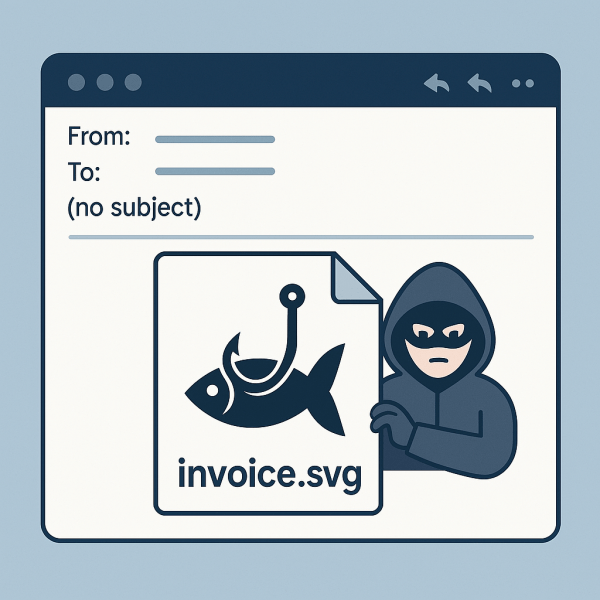

If you already clicked a link or entered details, this page explains what to do next. What to do after phishing
Not sure if a message is genuine?
Forward it to us before you click anything. We will check the sender, the links and the destination, and tell you what we found - no strings attached. You can also read about our cyber security service.