How to lock a PDF file with a password
With PDF24 Creator you can lock a PDF with a password in under a minute, without uploading it anywhere. Choose a good password and send it to the recipient separately.

Why do you need another program?
In Adobe Acrobat, locking a PDF with a password is only available in the paid business edition, and most offices run the free version. PDF24 Creator is free, also for business use, works directly on your computer and can be downloaded from the official site, pdf24.org.
Where do you download it?
Download PDF24 Creator from the official site only, using the button below. It installs like any other program.
SrvIT customers: we can install it for you remotely, without interrupting your work. Just ask :)
Seven steps, under a minute
Open PDF24
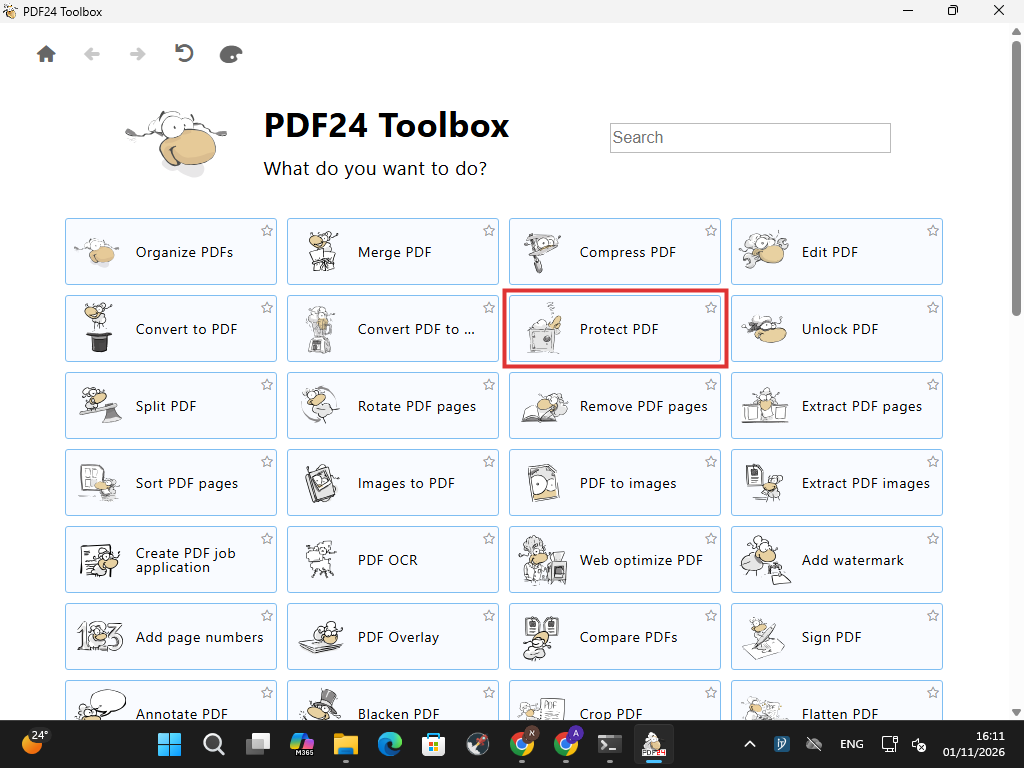
Open PDF24 Toolbox from the desktop icon, or type PDF24 in the Start menu and choose "PDF24 Toolbox". On the main screen, click "Protect PDF".
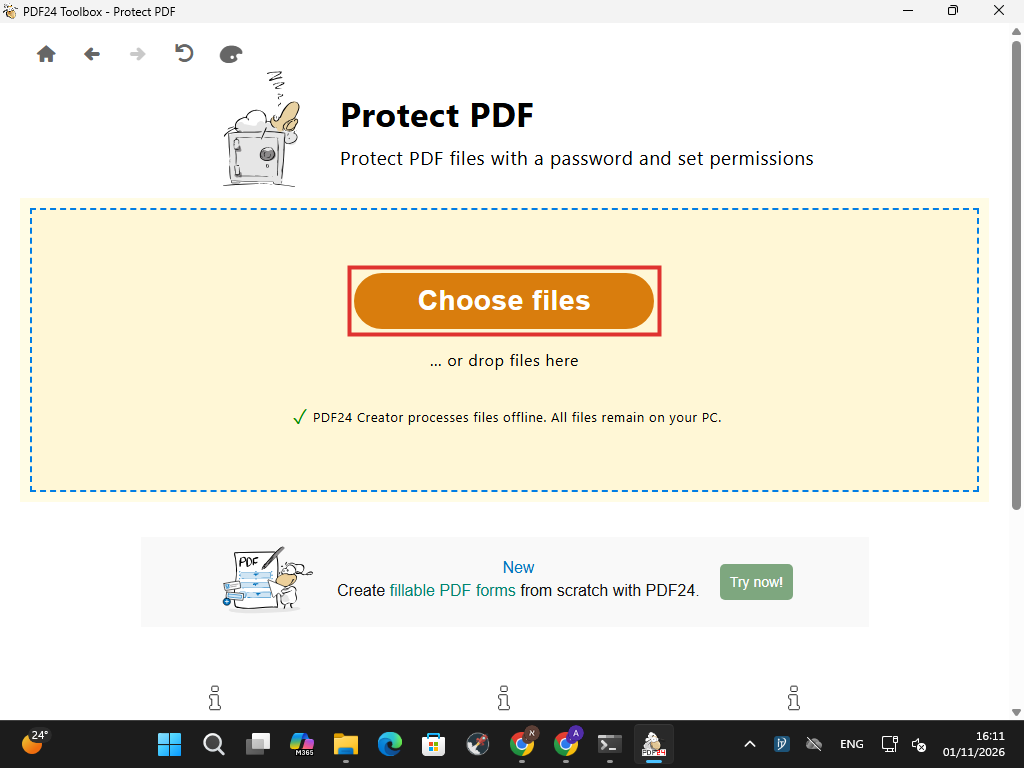
Choose a file
Click the orange "Choose files" button. You can also drag the file into the dashed frame. PDF24 works offline, so the file stays on your computer.
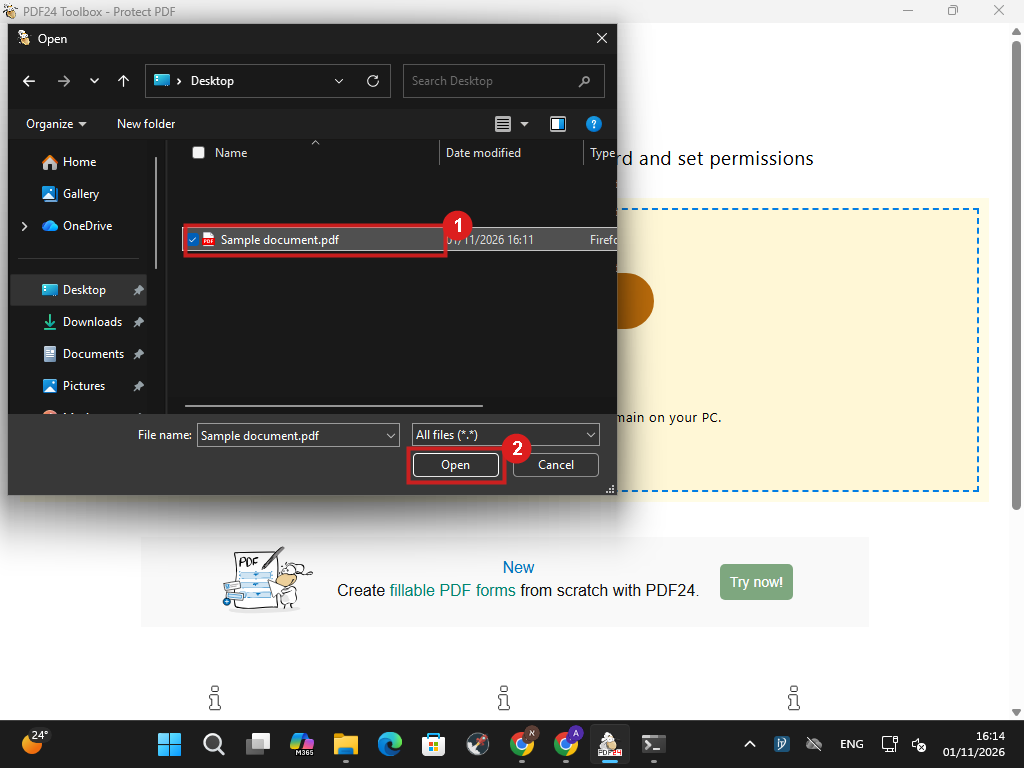
Select and open
Select the file (1) and click "Open" (2).
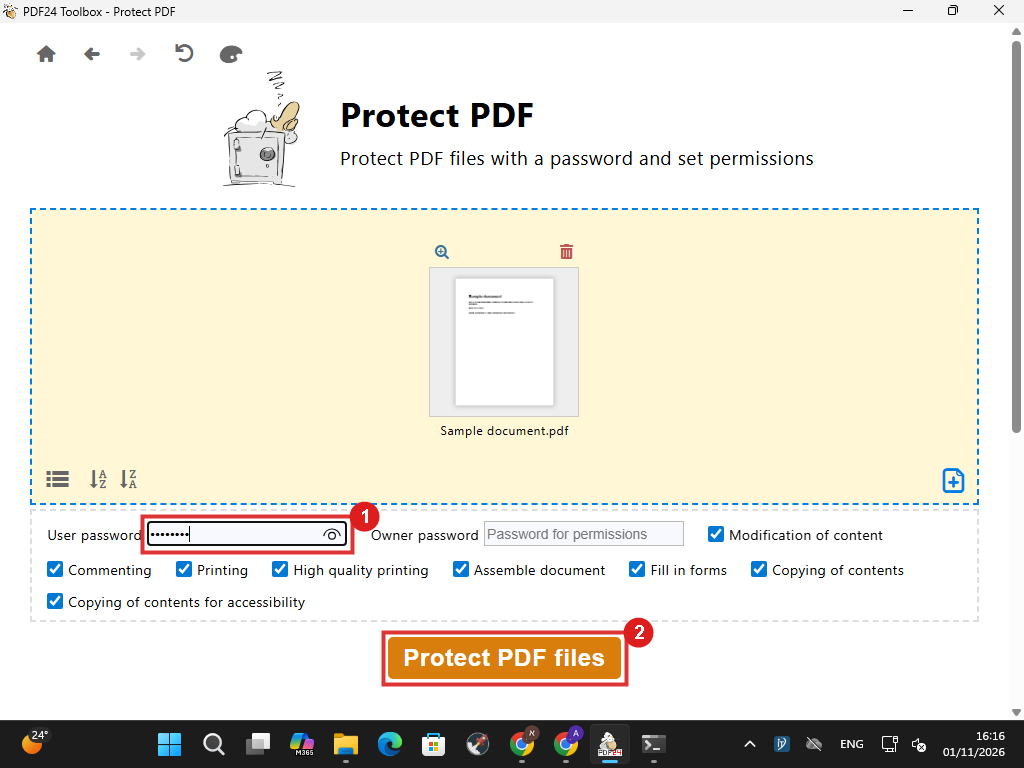
Type a password and lock
Type a password in the "User password" field (1) and click "Protect PDF files" (2). You can leave the other fields as they are.
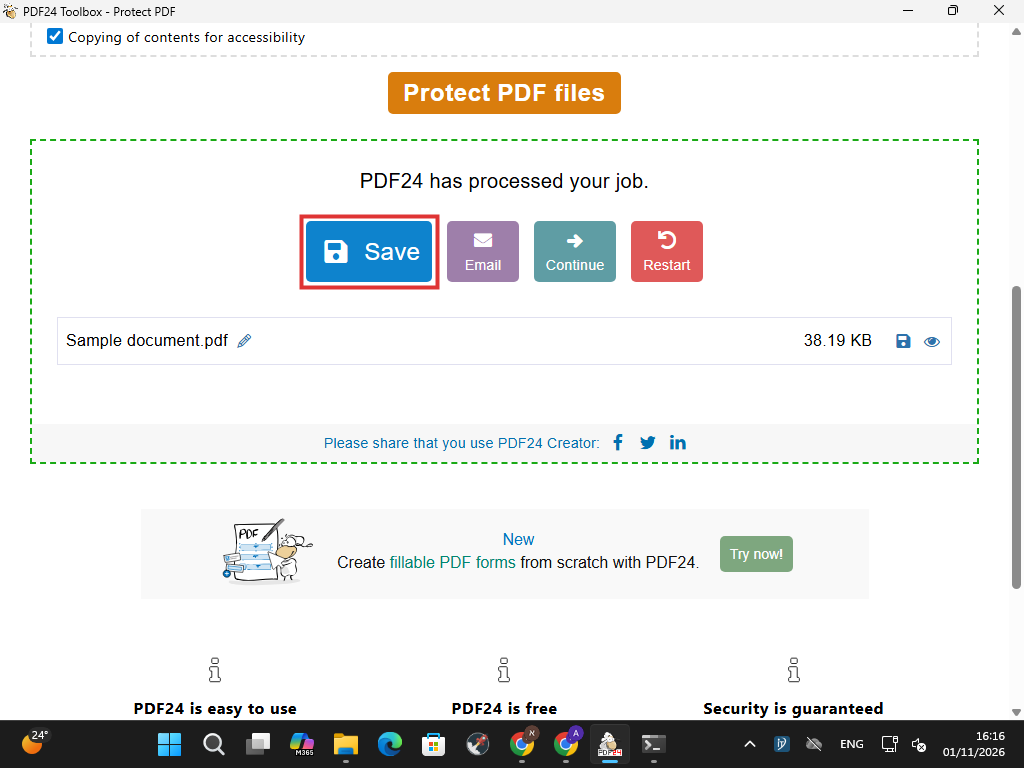
Save
When PDF24 says the job is done, click "Save".
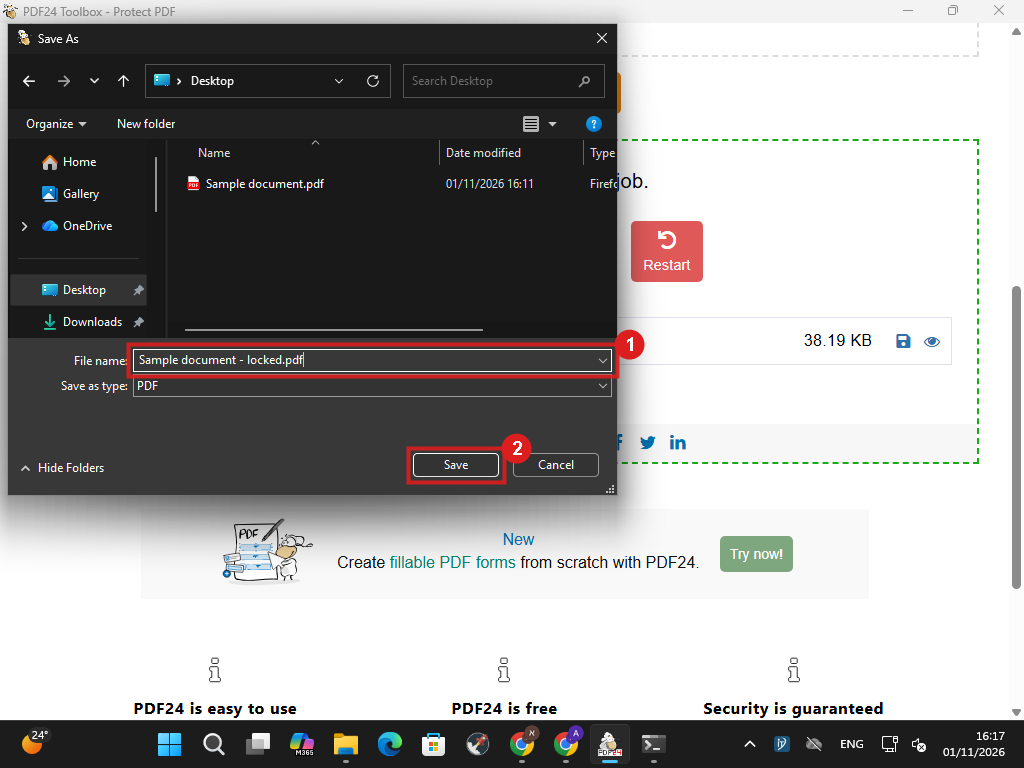
Give it a new name
Give the file a new name, for example add "locked" to it (1), so you also keep the original without a password. Then click "Save" (2).
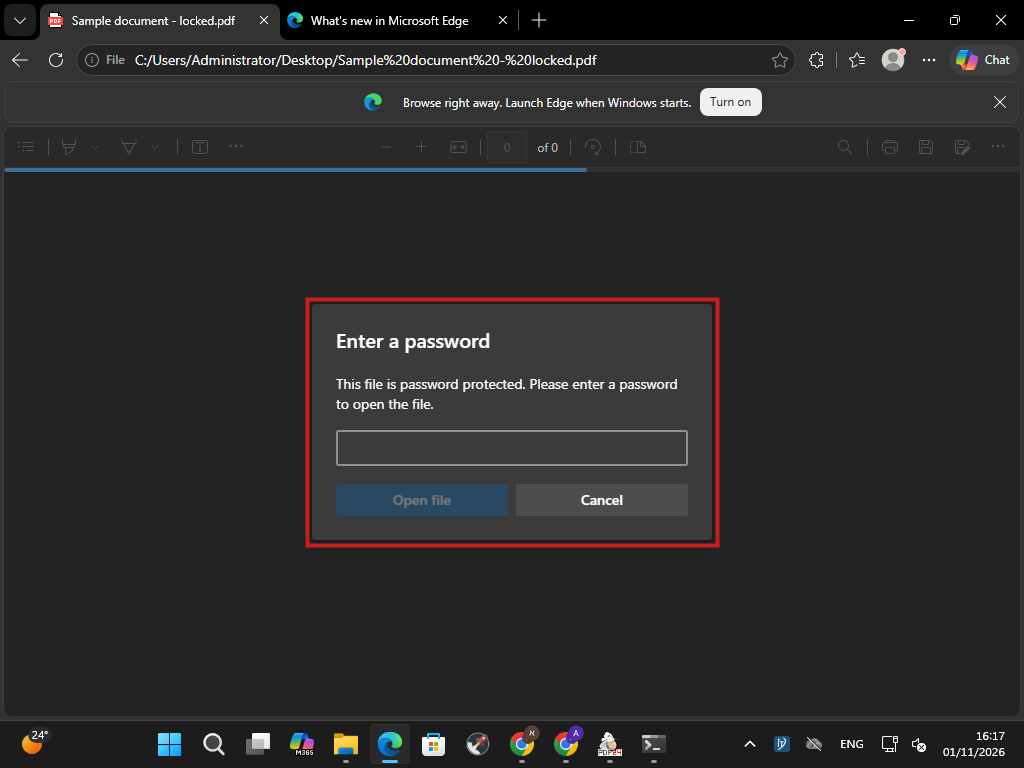
Check that it is locked
That's it. Anyone who opens the locked file is asked for the password before they can see what is inside.
Send the password in a separate message or by phone, not in the same email as the file. Keep the password somewhere safe: without it you will not be able to open the file either, and there is no way to recover it.
Need a hand?
If PDF24 is not installed on your computer or something does not work, get in touch. SrvIT customers can ask us to install it remotely.